How to Set Up a CS2 Community Server
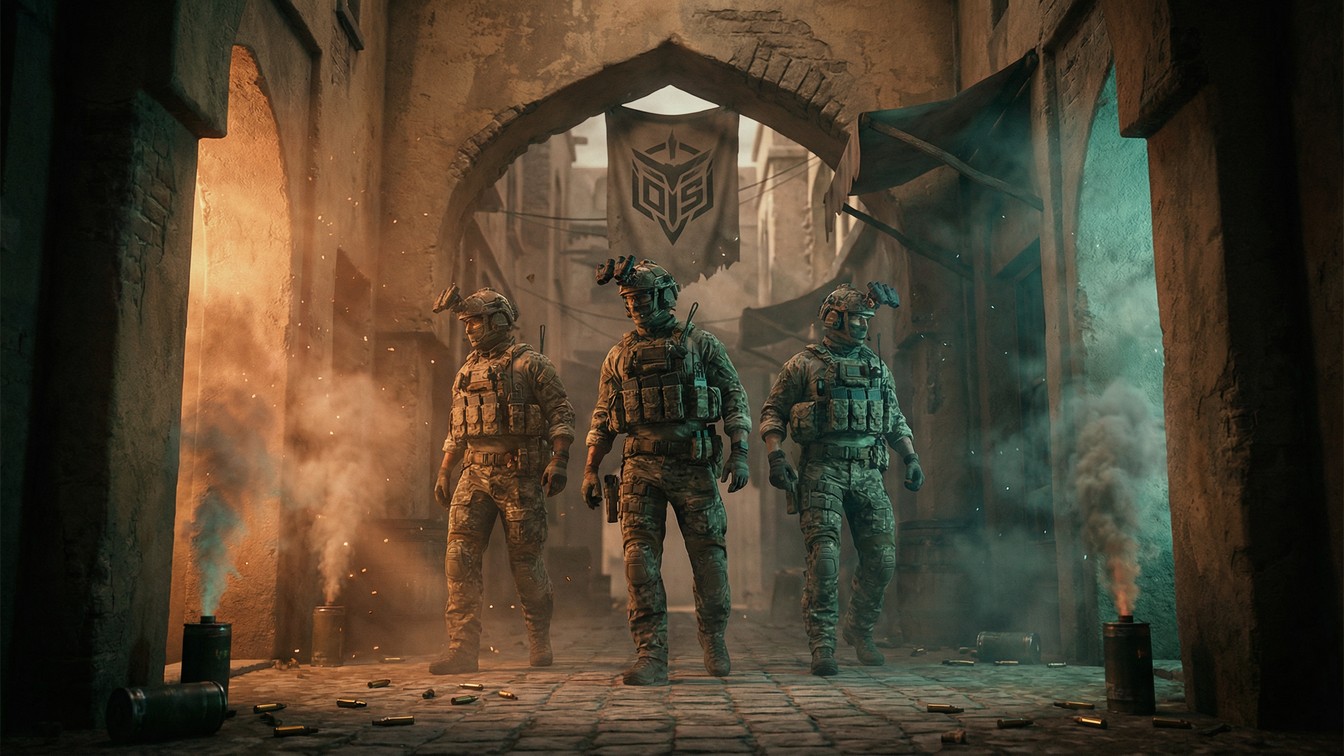
Deploy and configure a Counter-Strike 2 community server on MANAfuel with GSLT authentication, game modes, and competitive settings.
Generate a Game Server Login Token
Before deploying, create a GSLT (Game Server Login Token) from the Steam website. Log in to your Steam account, go to the Game Server Account Management page, enter CS2 App ID (730), and generate a token. This token authenticates your server with Valve and is required for your server to appear in the community server browser. Copy the token — you will need it during setup.
Deploy Your CS2 Server
Open the MANAfuel dashboard and click Deploy. Select Counter-Strike 2, choose your plan (Starter comes with 2 GB — sufficient for most CS2 servers), and enter your GSLT token in the configuration field. Your CS2 server deploys with the latest game build and default competitive settings.
Configure Game Mode and Map Pool
Open your server settings in the MANAfuel dashboard. CS2 supports multiple game modes: Competitive (5v5 bomb defusal), Casual (10v10 relaxed rules), Deathmatch (free-for-all), and custom modes through server plugins. Set your default map with the server config — popular competitive maps include de_dust2, de_mirage, de_inferno, and de_anubis. The map rotation is configured via the mapgroup file in the File Manager.
Set Competitive Rules
For competitive play, configure round time (1:55 for official rules), buy time (20 seconds), freeze time (15 seconds), and max rounds (24 with overtime). These settings go in the server.cfg file, editable through the File Manager. Use mp_maxrounds 24, mp_roundtime 1.92, mp_buytime 20, and mp_freezetime 15. For casual servers, use longer round times and enable auto-team-balance.
Configure Server Access
Set a server password in your settings to create a private server. For public servers, leave the password blank — your GSLT ensures the server appears in the community browser. Set sv_maxrate 0 (no server-imposed rate cap for clients) and sv_mincmdrate 128 for smooth gameplay. Manage admin access through RCON — add trusted players as admins using a server management plugin like CounterStrikeSharp.
Test and Go Live
Connect to your server using the console command connect <your-server-address>:<port>. Verify the game mode loads correctly, maps rotate as expected, and competitive rules apply. Bob monitors your CS2 server for crashes and VAC authentication failures — if the GSLT token expires or is revoked, Bob alerts you immediately so you can generate a replacement.