Palworld Dedicated Server Setup Guide

Deploy and configure your Palworld dedicated server on MANAfuel with world settings, player slots, and password configuration for multiplayer.
Deploy Your Palworld Server
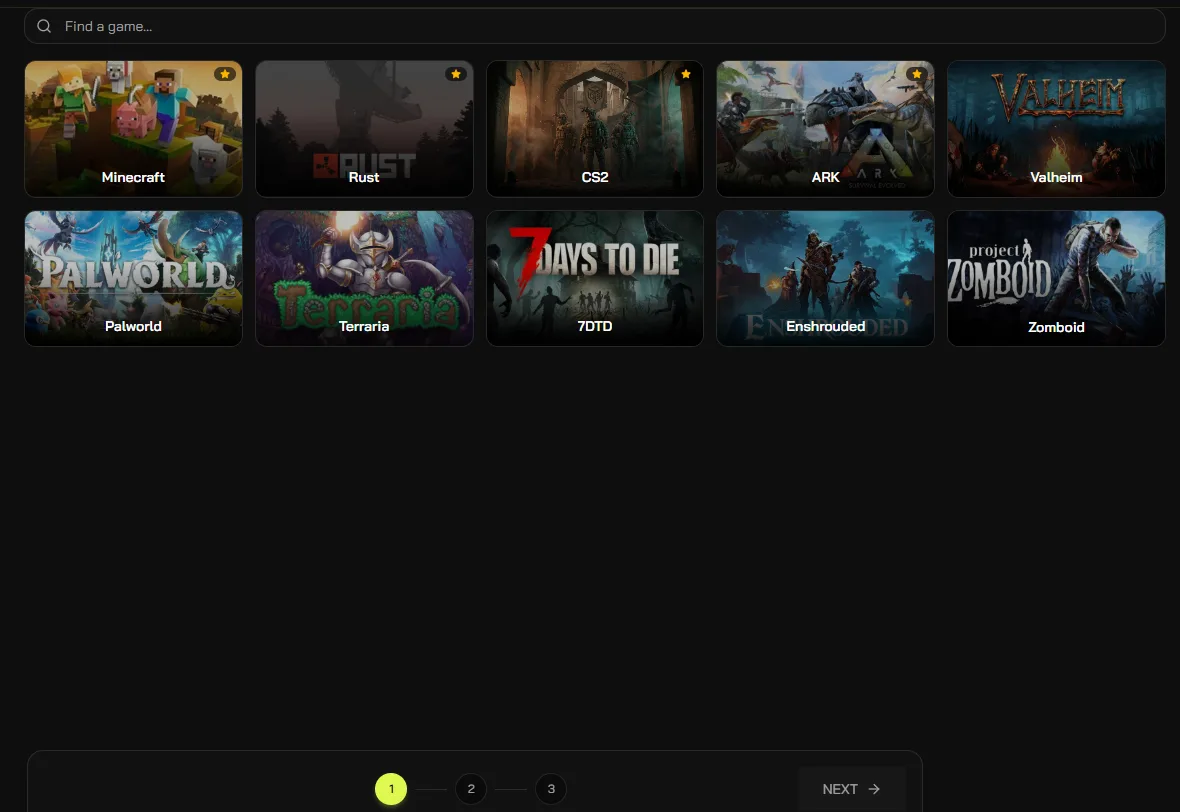
Open the MANAfuel dashboard and click Deploy. Select Palworld, choose your plan (Gamer plan with 8 GB minimum recommended — Palworld dedicated servers require significant memory), and pick a server name. Your server deploys with the latest game build. First boot takes 3 to 5 minutes as the world initializes and configuration files generate.
MANAfuel deployment wizard showing Palworld as a selectable game server optionConfigure Server Identity
Open your server settings in the MANAfuel dashboard. Set the server name (visible in the server browser), a description, and an optional password. Without a password, any player can join from the community server list. For private groups, always set a password. You can also configure the server to not appear in the public server browser for fully private operation.
Set Player Slots and World Settings
Configure max players in your server settings (default 32, reduce for better performance). Palworld worlds are persistent — bases, captured Pals, and player progress save automatically. The first player to join generates the starting area. Additional world configuration options are available in the PalWorldSettings.ini file through the File Manager.
Share Connection Details
Find your server IP and port (default 8211 UDP) in the Connection Info section of your MANAfuel dashboard. Players connect through the Palworld multiplayer menu using direct connect — enter the IP and port. Share these details with your community. Alternatively, if your server appears in the community browser, players can find it by searching your server name.
Monitor and Maintain
Palworld dedicated servers benefit from periodic restarts every 12 to 24 hours, especially with active base building. Memory usage grows as players capture more Pals and build larger bases. Monitor the performance metrics in your dashboard. Bob tracks server health continuously — if memory pressure increases, Bob recommends a restart or plan upgrade before it affects gameplay.